IPTV Buffering: Causes and How to Fix It
When the picture stops, spins or drops in quality, the cause can almost always be found at home. Work through these checks, from the quickest to the most thorough, and the stream will usually settle.
6 min read
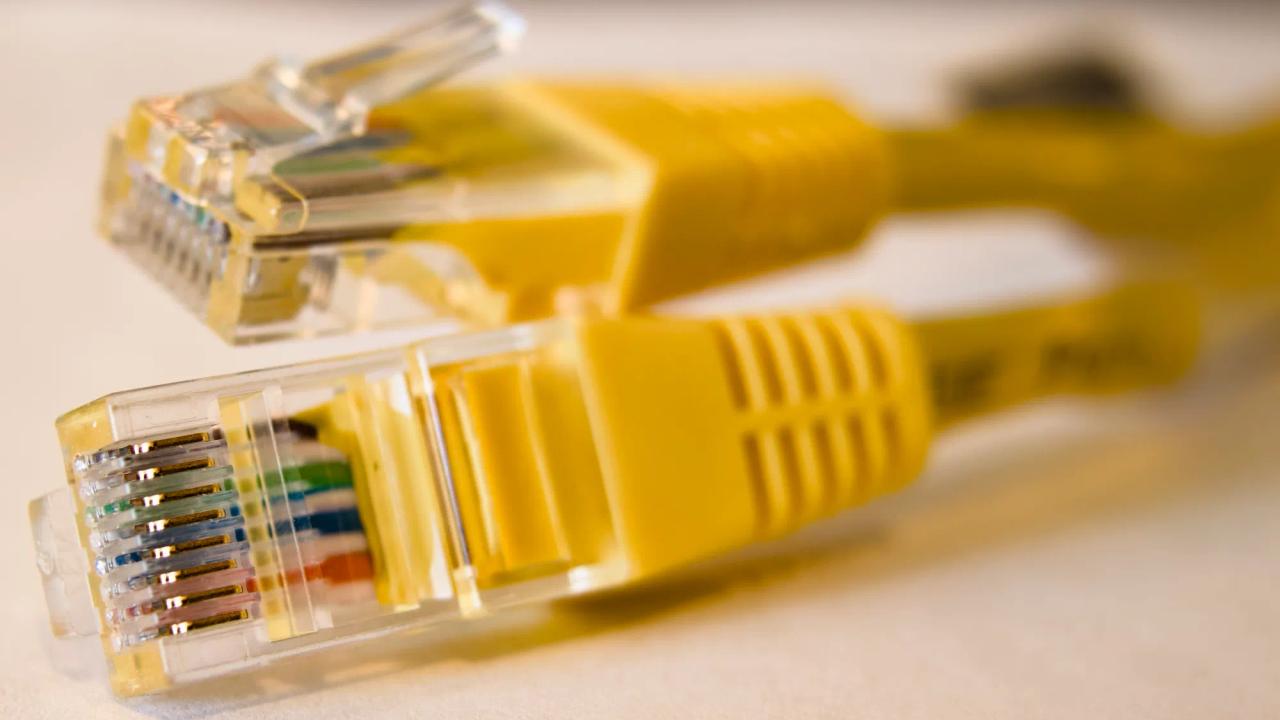
Few things are more irritating than a picture that freezes just as something important happens on screen. The good news is that buffering is rarely a mystery. It has a handful of usual causes, most of them inside the home, and each one leaves clues that point to it.
This guide starts by helping you locate the problem, then goes through the fixes in the order worth trying: the quick ones first, the more involved ones after.
What buffering actually is
A player app never shows the video the instant it arrives. It keeps a small reserve of a few seconds, filling it from the internet while it plays from the other end. As long as data comes in at least as fast as the picture plays, you see nothing of this.
When data slows down, even briefly, the reserve drains. Once it is empty, the player has nothing left to show, so it stops and waits for the reserve to fill again. That pause, often with a spinning circle, is buffering. With on demand content the player can store a larger reserve in advance; with live channels it cannot get far ahead of the broadcast, which is why live TV shows connection problems first.
Step one: find out where the problem is
Before changing anything, answer four questions. They take a minute and save a lot of guesswork.
- Is it one channel or all of them? If a single channel buffers while the rest play well, the issue is probably with that channel's stream, not your home. Try it again later, and tell support if it continues.
- Is it one device or every device? Buffering on one television only points to that television, its player or its Wi-Fi signal. Buffering everywhere points to the router or the internet line.
- Does it happen at certain times? Trouble that appears in the evening, when everyone in the house and the neighbourhood is online, usually means the network is crowded.
- Did something change recently? A new router, a moved television, a system update or a new player are all worth remembering.
Quick fixes worth trying first
These take only a few minutes and solve a surprising share of cases.
- Close the player app completely, rather than just leaving it, and open it again.
- Restart the device. For a streaming stick, unplug it from the power for half a minute; many sticks never fully switch off otherwise.
- Restart the modem and router. Unplug them, wait about a minute, and plug them back in, modem first.
- Pause heavy activity elsewhere in the house: large downloads, game and system updates, cloud backups and video calls all compete for the same connection.
- Update the player app and the device's system. Updates often fix playback problems and improve how video is decoded.
Wi-Fi: the usual suspect
In most homes, the weakest link is not the internet line but the last few metres of it: the wireless signal between the router and the television.
Wi-Fi weakens through walls, floors and furniture, and a streaming stick is often in the worst possible place, tucked behind a large metal-backed television. A few changes make a real difference.
- Use a network cable if you can. A wired connection is the single most effective fix for buffering. Plenty of televisions and boxes come with a network port, and a stick without one can take an adapter.
- Prefer the 5 GHz band. Most routers broadcast two networks. The 5 GHz one is faster and less crowded; the 2.4 GHz one reaches further but is shared with many household devices.
- Move the stick out from behind the TV. The short HDMI extension cable supplied with many sticks lifts them clear of the back panel and improves reception.
- Give the router a better spot. Place it in the open, as central and as high as practical, and not inside a cabinet or next to a microwave.
- Extend the network where it is weak. A mesh system or a second access point helps in large or multi-storey homes. Where running a cable is not possible, powerline adapters carry the network through the electrical wiring instead.
Measure your speed the right way
A speed test done on a phone sitting next to the router says little about what reaches the television in another room. To get a useful picture:
- run the test on the streaming device itself, or on a phone held at the same spot;
- run it at the time when buffering happens, not at a quiet moment;
- repeat it a few times, since a single result can mislead;
- watch the download figure and how steady it is, rather than the upload figure.
A line that swings widely from one test to the next causes more trouble than one that is a little slow but steady. Remember that every screen playing at once draws its own stream: 4K and several screens in use together are where a faster plan from your internet provider pays off. If your household watches on several screens at the same time, multi screen IPTV explains how plans for more than one device work.
Settings in your player that can help
Players differ, but many have a few options worth knowing about. Look in the playback or player section of the settings.
- Buffer size. Some players let you increase the reserve they keep. A larger buffer takes a little longer to start but rides out short slowdowns better.
- Decoder or internal player. Many Android-based players offer a choice between a hardware and a software decoder, or between several built-in players. If the picture stutters, switching to the other option often cures it.
- Stream format. Players that use an Xtream Codes login sometimes let you choose the format of the stream, often TS or HLS. When one buffers, try the other.
- Picture quality. If the channel list offers the same channel in more than one quality, the lower one needs less bandwidth and is a sensible choice on a weak connection.
- Cache. Clearing the app's cache from the device's settings can help when a player has become slow after weeks of use.
Not sure which login your player uses? The difference between a playlist and an Xtream login has a guide of its own.
When the device is the bottleneck
Sometimes the connection is fine and the device simply cannot keep up. Old streaming sticks and the systems built into budget televisions have little memory and modest processors. The signs are easy to spot: menus react slowly, the channel list takes a long time to open, the app closes on its own, and 4K channels stutter where HD channels play smoothly.
Close apps running in the background, clear the cache of the player and restart the device. If that is not enough, a recent streaming stick on one of the television's HDMI ports is usually a bigger improvement than any setting. The IPTV Firestick Canada guide and the Android TV guide cover setting one up.
When the internet line itself is the problem
If every device in the house buffers, at every hour, even when connected by cable, the trouble lies further upstream. Restart the modem, check that its lights show a normal connection, and look for a firmware update for your router in its settings or app. If tests on a wired computer still show a slow or unstable line, contact your internet provider: the problem is in the line or their network, and only they can fix it.
When to contact support
Get in touch with support if a channel keeps buffering while others play smoothly, if the problem started suddenly on every device at once, or if you have worked through this guide without success. Mention the device, the player app, the channel and the time it happened: those four details make the answer much quicker.
Smartiflix support costs nothing, answers around the clock and stays available while your plan is running. If the service itself stops working for you, support can send you a fresh playlist or login so that you can keep watching. For setup help with a specific device, start at the IPTV setup guide.